
What is Waitlist Feature ?
The waitlist feature helps collect customer interest when a tour date or time slot does not have enough remaining capacity for the selected number of guests.
For example, if a tour has only 2 seats left and the customer tries to book for 4 guests, the booking system will stop the checkout from creating a confirmed booking. Instead, the customer can join the waitlist, so the site admin can follow up if seats become available.
When the Waitlist Appears
The waitlist is shown only when the selected tour date or time slot is full, or when the requested guest count is higher than the remaining available capacity.
It can appear in cases such as:
- The selected date is fully booked.
- The selected time slot is fully booked.
- The customer selects more guests than the remaining capacity.
- A group booking exceeds the available group capacity for that date.
The waitlist is not shown for every unavailable date. If a date is blocked by the admin, outside the booking window, unavailable by schedule rules, past the cutoff time, or the tour is enquiry-only, the customer will usually be asked to choose another date instead.
Customer Flow
- The customer selects a tour date, time slot, and guest count.
- The customer continues to the checkout page.
- During checkout, the system checks the latest availability again.
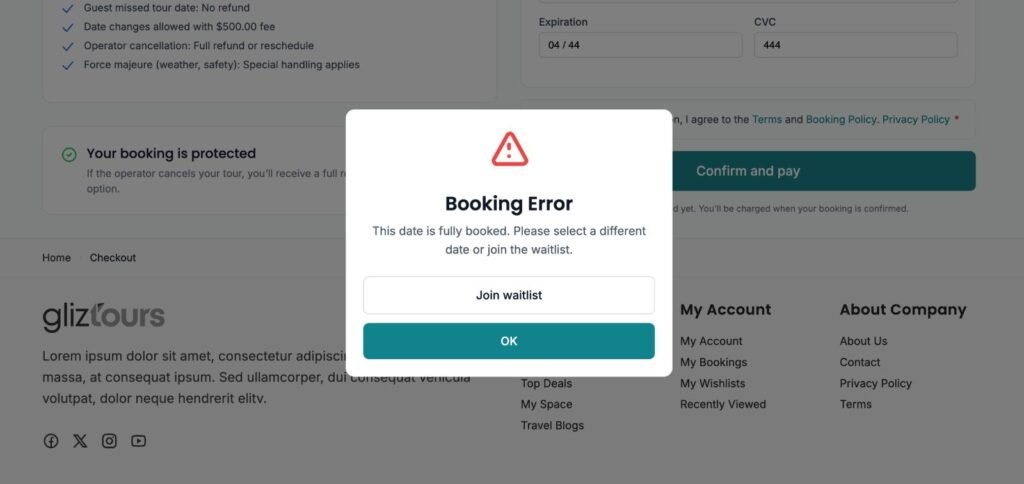
- If the selected date no longer has enough capacity, a booking error message appears.
- The customer can click Join waitlist.
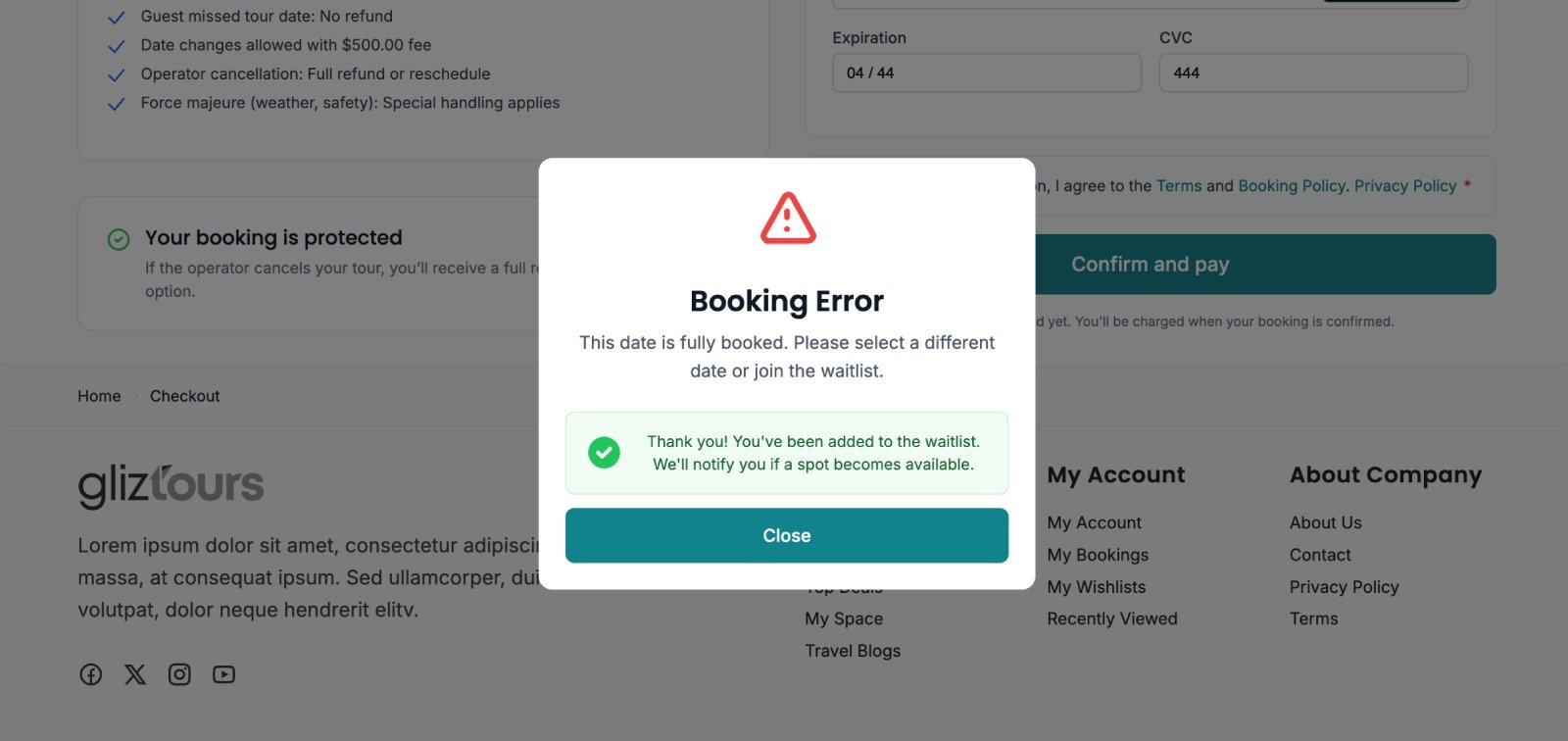
- The system uses the customer’s checkout details, including name, email, phone, selected date, tour, and guest count, to create a waitlist request.
What Happens in the Admin Panel
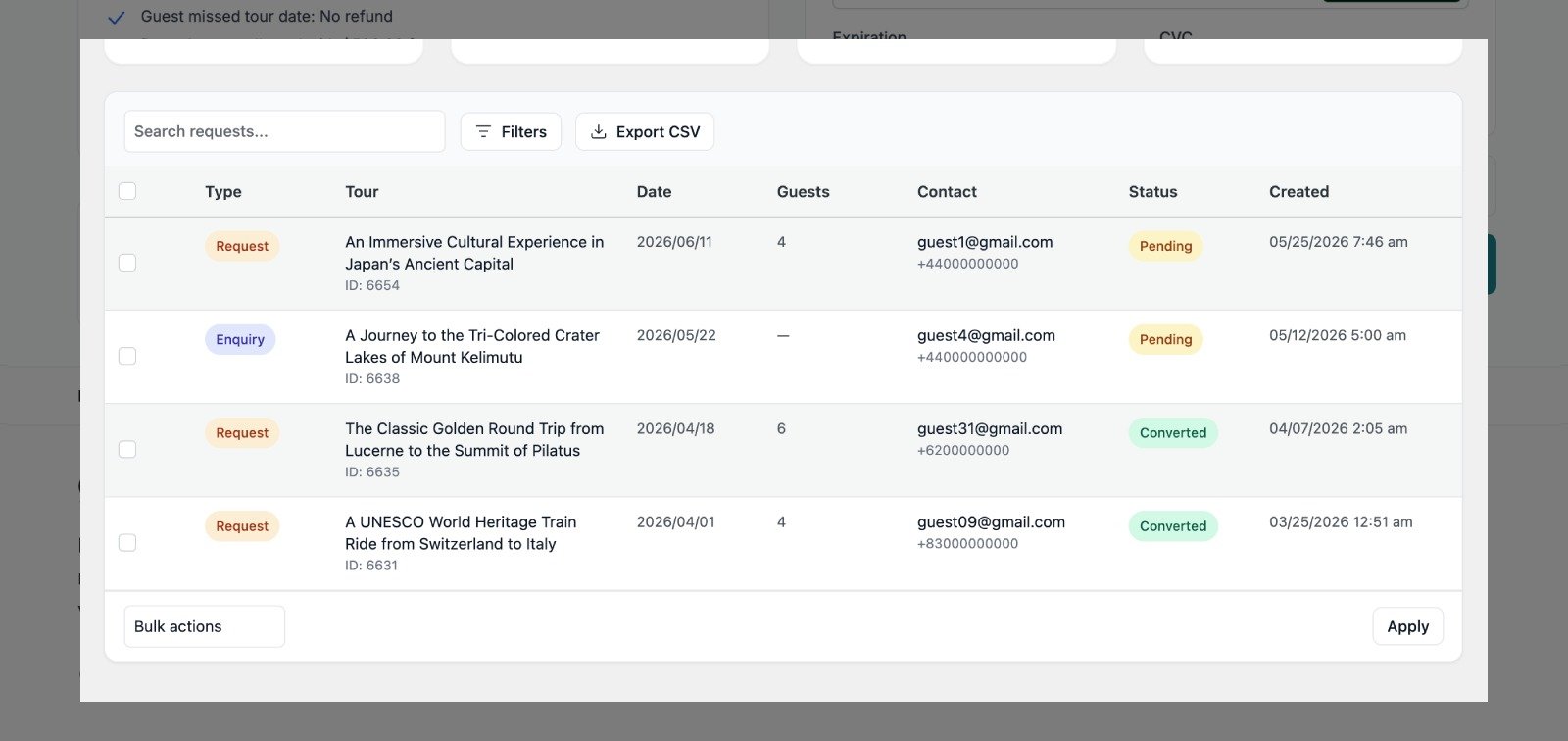
After a customer joins the waitlist, the request appears in:
Travel Agency Dashboard > Requests
or directly at:
admin.php?page=gta-requests
The Requests page shows:
- Tour name
- Requested date
- Number of guests
- Customer email and phone
- Request status
- Created date
- Request type
- Conversion status
Clicking a request opens the request drawer. From there, the admin can review the customer details, requested date, guest count, notes, current capacity information, and estimated total.
Request Statuses
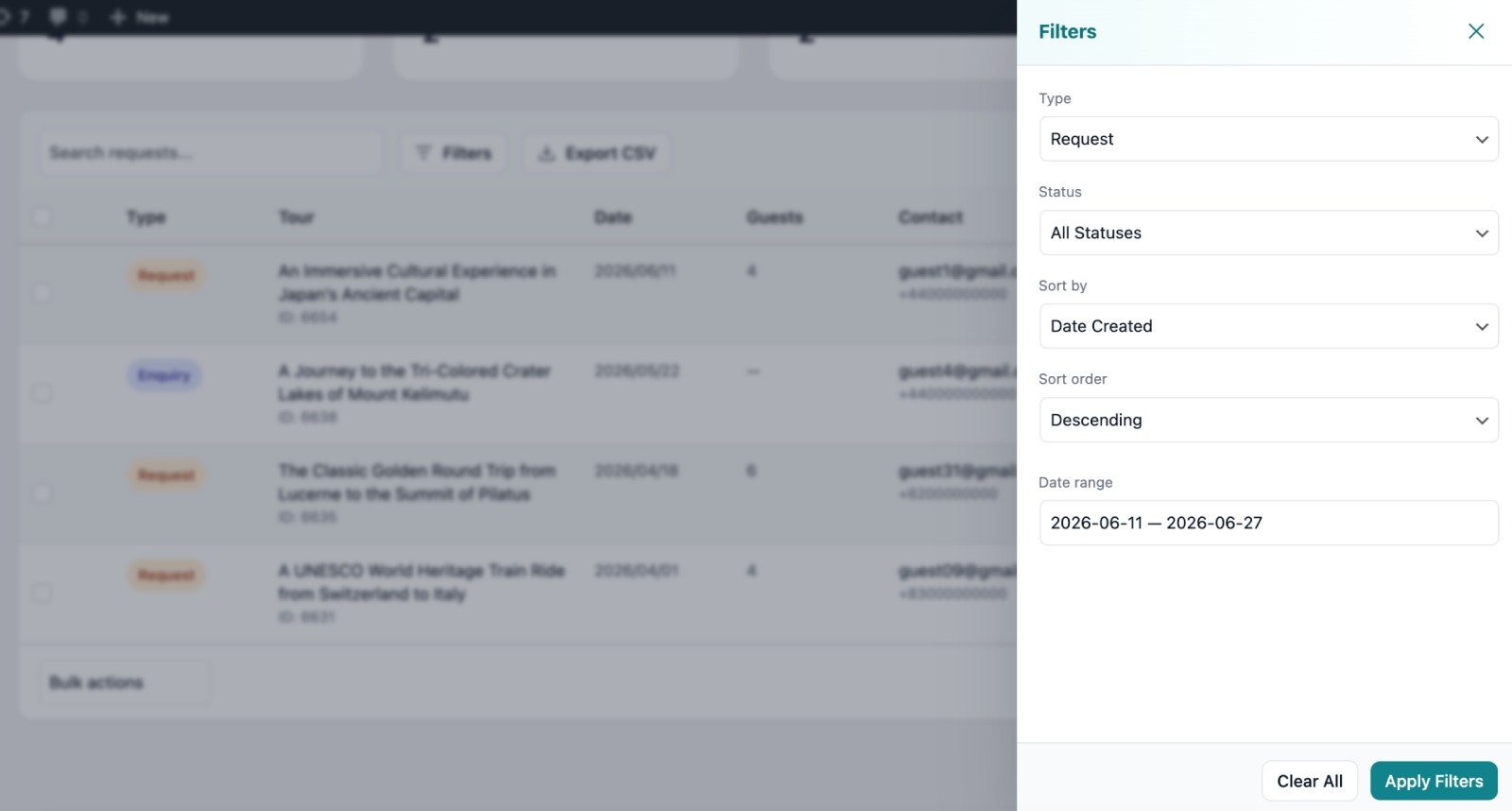
Each request can have one of these statuses:
- Pending: New request waiting for review.
- Contacted: Admin has contacted the customer.
- Converted: Request has been converted into a booking.
- Cancelled: Request is no longer active.
Converting a Waitlist Request to a Booking
If capacity becomes available later, the admin can open the request and click Convert to Booking.
The system checks availability again before creating the booking. If the date is still full or unavailable, the request cannot be converted until another available date or capacity becomes available.
A converted request is linked to the new booking and marked as Converted.
Duplicate Waitlist Requests
If the same customer tries to join the waitlist again for the same tour, date, and time slot, the system does not create a duplicate request. Instead, it shows a message confirming that the customer is already on the waitlist.
Important Note About Demo Sites
On a GLIZ Tour live demo site, it may not always be possible to show a waitlist example. Once a tour date becomes fully booked, the calendar may prevent that date from being selected. This is expected behavior because the booking system protects customers from selecting dates that are already unavailable.
The waitlist is mainly triggered during checkout when the selected date or time slot cannot fit the requested guest count anymore.
Summary
The waitlist feature does not create a confirmed booking automatically. It records the customer’s interest when the selected tour cannot currently accept the requested number of guests. The site admin can then review the request, contact the customer, and convert it into a booking if availability becomes available later.